Showing posts with label Amazon. Show all posts

Thursday, June 04, 2015

How to set up Spark on EC2

  1. setup AWS keys 
Follow how to setup Amzon AWS at [5]


export AWS_ACCESS_KEY_ID=xxxxxxxxx
export AWS_SECRET_ACCESS_KEY=xxxxxxxxxxxxxx

In case you need a spark [2]:
The latest release of Spark is Spark 1.3.1, released on April 17, 2015 (release notes) (git tag)
  1. Choose a Spark release: 1.3.1 (Apr 17 2015)
  2. Choose a package type
  3. Choose a download type: Select Apache MirrorDirect Download

  1. generate a keypairs at AWS as shown [1]

    1. download it to the local, especially at ec2 directory; Any directory for ampcamp?
      1. If not, SSH error will show up,
      2. for example, under the following directory: osboxes@osboxes:~/spark-1.3.1-bin-hadoop2.6/ec2
    2. chmod 400 [key.pem]  in amp3 but not working for EC2
      1. or chmod 600 [key.pem] 

  1. Run instances

osboxes@osboxes:~/spark-1.3.1-bin-hadoop2.6/ec2$ ./spark-ec2 --key-pair=ampcamp3 --identity-file=~/.ssh/ampcamp3.pem --region=us-east-1 --zone=us-east-1a --copy launch my-spark-cluster

notes: -s (or --slaves) for number of slaves
osboxes@osboxes:~/proj/ampcamp3/training-scripts$ ./spark-ec2 -i ampcamp3.pem -k ampcamp3 -z us-east-1b -s 3 --copy launch amplab-training

4. Log in to master node

You need to go to AWS to find the master instance. Select the instance and choose "Connect" that shows the shell command to connect it remotely

And, http://master_node:8080 should be a spark page


5. Run HDFS at EC2 when HDFS has your data file that Spark needs to read
    root@ip-10-232-51-182$ cd /root/ephemeral-hdfs/bin
    root@ip-10-232-51-182 bin]$ ./start-dfs.sh
    root@ip-10-232-51-182 bin]$ ./hadoop fs -ls /
    root@ip-10-232-51-182 bin]$ ./hadoop fs -put samplefile /user/myname

    Note: security group for master node needs to open for TCP 7077

    6. Run any example at the master node [4, 7]

    6.a wordcount for samplefile

    cd ~/spark-1.3.1-bin-hadoop2.6

    osboxes@osboxes:~/spark-1.3.1-bin-hadoop2.6/$ ./bin/spark-submit
    spark> text_file = spark.textFile("/user/myname/samplefile")
    spark> counts = text_file.flatMap(lambda line: line.split(" "))
                 .map(lambda word: (word, 1))
                 .reduceByKey(lambda a, b: a + b)
    spark> counts.saveAsTextFile("hdfs://...")     

    6.b Spark Example
    cd ~/spark-1.3.1-bin-hadoop2.6
    osboxes@osboxes:~/spark-1.3.1-bin-hadoop2.6/$ ./bin/spark-submit \
     --class org.apache.spark.examples.SparkPi \
     --master spark://54.205.231.93:7077 \
     --executor-memory 20G \
     --total-executor-cores 100 \
     ~/spark-1.3.1-bin-hadoop2.6/lib/spark-examples-1.3.1-hadoop2.6.0.jar   1000
    ./bin/spark-submit \
     --class org.apache.spark.examples.SparkPi \
     --master local[8] \
     --executor-memory 20G \
     --total-executor-cores 100 \
     ~/spark/lib/spark-examples-1.3.1-hadoop1.0.4.jar 1000


    Reference
    1. https://spark.apache.org/docs/latest/submitting-application
    2. http://dal-cloudcomputing.blogspot.com/2013/04/create-aws-account-and-access-keys.html
    3. https://spark.apache.org/examples.html

    Sunday, April 07, 2013

    Run a Cloudera Hadoop cluster using Whirr on AWS EC2


    Note: tested at Mac OS X 10.6.8

    1. Open your Mac terminal
    2. copy and the paste the following with your AWS_ACCESS_KEY_ID and AWS_SECRET_ACCESS_KEY keys:


    export AWS_ACCESS_KEY_ID=XXXXXXXXXXXXXXXXXXXXXXXXXxx
    export AWS_SECRET_ACCESS_KEY=yyyyyyyyyyyyyyyyyyyyyyyyyyyyyyyyyy
    export WHIRR_PROVIDER=aws-ec2
    export WHIRR_IDENTITY=$AWS_ACCESS_KEY_ID
    export WHIRR_CREDENTIAL=$AWS_SECRET_ACCESS_KEY


    1. At your terminal, type in the following
      1. pwd


    1. Download and install whirr
    curl -O http://www.apache.org/dist/whirr/whirr-0.8.1/whirr-0.8.1.tar.gz
    tar zxf whirr-0.8.1.tar.gz; cd whirr-0.8.1


    1. Generate ASW private key
    ssh-keygen -t rsa -P '' -f ~/.ssh/id_mac_rsa_whirr


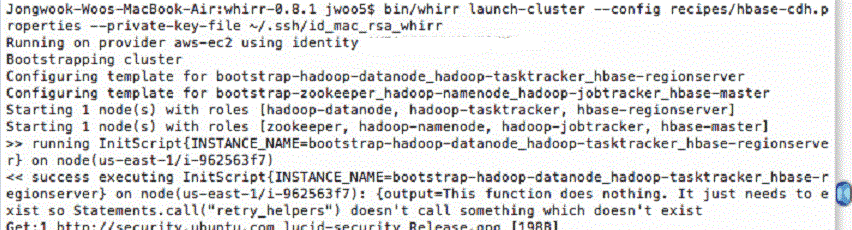
    1. Start CDH (Cloudera’s Distribution including Hadoop) remotely from your local machine
    bin/whirr launch-cluster --config recipes/hbase-cdh.properties --private-key-file ~/.ssh/id_mac_rsa_whirr


      1. If you want to stop CDH server of AWS, use the following command:
    bin/whirr destroy-cluster --config recipes/hbase-cdh.properties --private-key-file ~/.ssh/id_mac_rsa_whirr


    1. You can log into instances using the following ssh commands; use the last one as zookeeper/namenode to log into AWS EC2 server


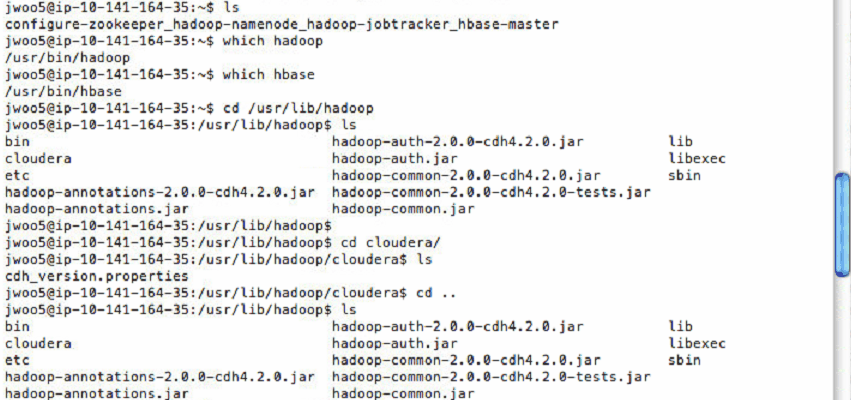
    1. At the remote SSH shell of AWS, make sure if AWS EC2 has both HBase and Hadoop. Do the same commands as below and compare the results:


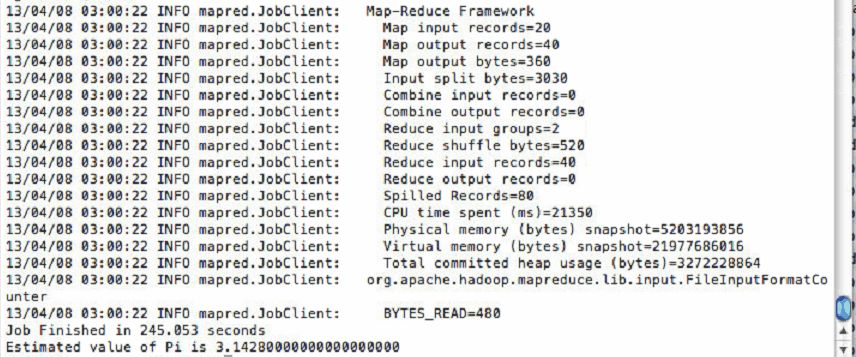
    1. You may skip the following if you don't have "hadoop-0.20.2-examples.jar". Now run Hadoop pi demo to test Hadoop; Need to have  hadoop-0.20.2-examples.jar given by the instructor :


    jwoo5@ip-10-141-164-35:~$ cd
    jwoo5@ip-10-141-164-35:~$ hadoop jar hadoop-0.20.2-examples.jar pi 20 1000


    ...


    1. FYI - skip this: Normally need to setup path and CLASSPATH at EC2 server to run hbase and hadoop codes. However, CDH seems have them during the installation.
    export HADOOP_HOME=/usr/lib/hadoop
    export HBASE_HOME=/usr/lib/hbase
    #export PATH=$HADOOP_HOME/bin:$HBASE_HOME/bin:$PATH


    # CLASSPATH for HADOOP
    export CLASSPATH=$HADOOP_HOME/hadoop-annotations.jar:$HADOOP_HOME/hadoop-auth.:$CLASSPATH
    export CLASSPATH=$HADOOP_HOME/hadoop-common.jar:$HADOOP_HOME/hadoop-common-2.0.0-cdh4.2.0-tests.jar:$CLASSPATH


    # CLASSPATH for HBASE
    ...


    1. Run HBase (Hadoop NoSQL DB) demo:


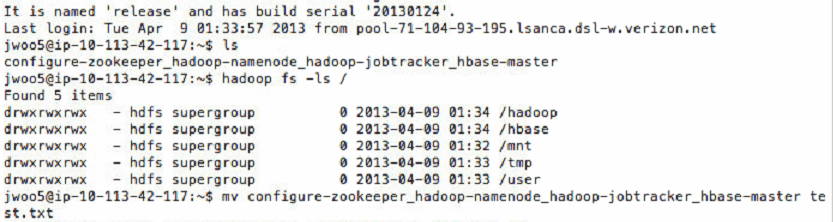
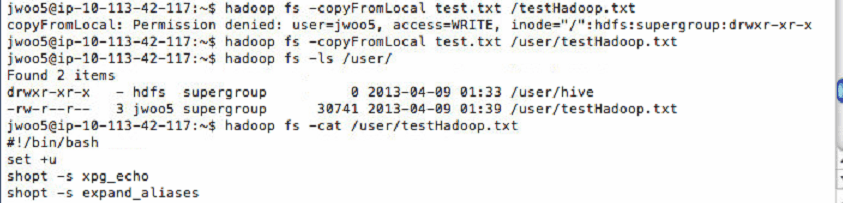
     12 HDFS commands test
        1. hadoop fs -[command]
    ls : list files and folders at “folder”
    copyFromLocal : copy “local” file to “hdfs” file
    mv: move : move “src” file to “dest” file
    cat : display the content of “file”


    ...


    References


    Create AWS Account and the access keys


    1. Open and Sign up at AWS (http://aws.amazon.com/), That is, create your AWS account
    2. When you sign up, you need to enter your card number and telephone verification.
    Note: if this your first time to have the account, you will have the free account for 1 year.


    1. Go to http://aws.amazon.com/awscredits/ and enter your promotion code that the instructor gives you ($100 amount)
    note: if your usage is over $100, AWS will charge you at your credit card. Thus, after using it, terminate any server. And, the promotion usage disable the free account option - not sure.


    1. Click “Products & Services” or go to http://aws.amazon.com/products/
    2. In the right top, click on “Security Credentials”, https://portal.aws.amazon.com/gp/aws/securityCredentials, to create your AWS_ACCESS_KEY_ID and AWS_SECRET_ACCESS_KEY for remote connection from your local computer to AWS.
    3. At Access Credentials, click the tab “Access Keys” and create AWS_ACCESS_KEY_ID. Then, right next to the key, you can see “secret access key” as AWS_SECRET_ACCESS_KEY and click on “show”.

    Tuesday, June 21, 2011

    How to set up Hadoop and HBase together with Whirr on Amazon EC2

    It is not easy to set up both Hadoop and HBase on EC2 at the same time. This is to illustrate how to set them up together with Apache Incubator project Whirr. Besides, it describes how to login the master node so that you can easily execute your Hadoop codes and HBase data on thde node remotely.

    References

    [1] Phil Whelan, http://www.philwhln.com/run-the-latest-whirr-and-deploy-hbase-in-minutes
    [2] http://incubator.apache.org/whirr/quick-start-guide.html
    [3] http://incubator.apache.org/whirr/whirr-in-5-minutes.html
    [4] http://stackoverflow.com/questions/5113217/installing-hbase-hadoop-on-ec2-cluster
    [5] http://www.philwhln.com/map-reduce-with-ruby-using-hadoop
    [5.1] http://www.cloudera.com/blog/2011/01/map-reduce-with-ruby-using-apache-hadoop/

    ********************** Install Hadoop/HBase on Whirr [1] on Ubuntu 10.04 **********************
    NOTES: install JDK 1.6 not JRE
    1) mvn clean install
    First time: hbsql not found install error
    Second time: no problem successful

    2) set the following:
    export AWS_ACCESS_KEY_ID=xxxxxxxxxxxxxxxxxxxxxx
    export AWS_SECRET_ACCESS_KEY=xxxxxxxxxxxxxxxxxxxxxxxxxxxxxxxxxxxxxxxxx

    2.a) 5 min test of Whirr [3]
    ssh-keygen -t rsa -P '' -f ~/.ssh/id_rsa_whirr
    bin/whirr launch-cluster --config recipes/zookeeper-ec2.properties --private-key-file ~/.ssh/id_rsa_whirr

    echo "ruok" | nc $(awk '{print $3}' ~/.whirr/zookeeper/instances | head -1) 2181; echo


    2.b) bin/whirr destroy-cluster --config recipes/zookeeper-ec2.properties


    3)jongwook@localhost:~/whirr$ bin/whirr launch-cluster --config hbase-ec2.properties

    3.a) Exception in thread "main" org.apache.commons.configuration.ConfigurationException: Invalid key pair: (/home/jongwook/.ssh/id_rsa, /home/jongwook/.ssh/id_rsa.pub)

    Solution)
    ssh-keygen -t rsa -P ''

    4) You will see the following for about 5 min
    << (ubuntu@184.72.173.143:22) error acquiring Session(ubuntu@184.72.173.143:22): Session.connect: java.io.IOException: End of IO Stream Read
    << bad status -1 ExecResponse(ubuntu@50.17.19.46:22)[./setup-jongwook status]
    << bad status -1 ExecResponse(ubuntu@174.129.131.50:22)[./setup-jongwook status]

    5) then, hbase folder with shell and xml files are generated under '.whirr'
    jongwook@localhost:~/whirr$ ls -al /home/jongwook/.whirr/
    total 12
    drwxr-xr-x 3 jongwook jongwook 4096 2011-06-17 16:19 .
    drwxr-xr-x 46 jongwook jongwook 4096 2011-06-17 16:09 ..
    drwxr-xr-x 2 jongwook jongwook 4096 2011-06-17 16:19 hbase

    6) Setup proxy server at Systems > Preferences > Network Proxy [5, 5.1]
    Mark SOCKS Proxy
    Proxy Server: localhost
    port: 6666

    6.a) at another terminal - temr2, setupHadoopEnv :
    jongwook@localhost:~/whirr$ source ~/Documents/setupHadoop0.20.2.sh

    6.b) And, at another terminal - temr2, Run Hadoop proxy to connect external and internal clusters
    jongwook@localhost:~/whirr$ sh ~/.whirr/hbase/hadoop-proxy.sh
    Running proxy to Hadoop cluster at ec2-184-xx-xxx-0.compute-1.amazonaws.com. Use Ctrl-c to quit.
    Warning: Permanently added 'ec2-184-xx-xxx-0.compute-1.amazonaws.com,184.72.152.0' (RSA) to the list of known hosts.

    7) Run a sample hadoop shell at the original terminal - term1
    11/06/17 17:03:20 WARN conf.Configuration: DEPRECATED: hadoop-site.xml found in the classpath. Usage of hadoop-site.xml is deprecated. Instead use core-site.xml, mapred-site.xml and hdfs-site.xml to override properties of core-default.xml, mapred-default.xml and hdfs-default.xml respectively
    Found 4 items
    drwxr-xr-x - hadoop supergroup 0 2011-06-17 16:19 /hadoop
    drwxr-xr-x - hadoop supergroup 0 2011-06-17 16:19 /hbase
    drwxrwxrwx - hadoop supergroup 0 2011-06-17 16:18 /tmp
    drwxrwxrwx - hadoop supergroup 0 2011-06-17 16:18 /user


    8) at another terminal - temr3, setupHadoopEnv :
    jongwook@localhost:~/whirr$ source ~/Documents/setupHadoop0.20.2.sh

    8.a) And, at another terminal - temr3, Run HBase proxy to connect external and internal clusters; NOTE: need to close Hadoop proxy server because the port 6666 is shared
    jongwook@localhost:~/whirr$ sh ~/.whirr/hbase/hbase-proxy.sh
    Running proxy to HBase cluster at ec2-184-72-152-0.compute-1.amazonaws.com. Use Ctrl-c to quit.
    Warning: Permanently added 'ec2-184-72-152-0.compute-1.amazonaws.com,184.xx.xxx.0' (RSA) to the list of known hosts.

    9) Log in the master to run hadoop code with hbase data; user name is your local login, eg, jongwook for me.
    jongwook@localhost:~/whirr$ ssh -i /home/jongwook/.ssh/id_rsa jongwook@ec2-75-xx-xx-xx.compute-1.amazonaws.com
    OR
    jongwook@localhost:~/whirr$ ssh -i /home/jongwook/.ec2/id_rsa-dal_keypair jongwook@ec2-75-xx-xx-x.compute-1.amazonaws.com

    10) Now run Hadoop pi demo:
    [root@ip-10-116-94-104 ~]# cd /usr/local/hadoop-0.20.2/
    [root@ip-10-116-94-104 hadoop-0.20.2]# bin/hadoop jar hadoop-0.20.2-examples.jar pi 20 1000

    11) setup path and CLASSPATH to run hbase and hadoop codes
    export HADOOP_HOME=/usr/local/hadoop-0.20.2
    export HBASE_HOME=/usr/local/hbase-0.89.20100924
    export PATH=$HADOOP_HOME/bin:$HBASE_HOME/bin:$PATH

    # CLASSPATH for HADOOP
    export CLASSPATH=$HADOOP_HOME/hadoop-0.20.2-core.jar:$HADOOP_HOME/hadoop-0.20.2-ant.jar:$CLASSPATH
    export CLASSPATH=$HADOOP_HOME/hadoop-0.20.2-examples.jar:$HADOOP_HOME/hadoop-0.20.2-test.jar:$CLASSPATH
    export CLASSPATH=$HADOOP_HOME/hadoop-0.20.2-tools.jar:$CLASSPATH
    #export CLASSPATH=$HADOOP_HOME/commons-logging-1.0.4.jar:$HADOOP_HOME/commons-logging-api-1.0.4.jar:$CLASSPATH

    # CLASSPATH for HBASE
    export CLASSPATH=$HBASE_HOME/hbase-0.89.20100924.jar:$HBASE_HOME/lib/zookeeper-3.3.1.jar:$CLASSPATH
    export CLASSPATH=$HBASE_HOME/lib/commons-logging-1.1.1.jar:$HBASE_HOME/lib/avro-1.3.2.jar:$CLASSPATH
    export CLASSPATH=$HBASE_HOME/lib/log4j-1.2.15.jar:$HBASE_HOME/lib/commons-cli-1.2.jar:$CLASSPATH
    export CLASSPATH=$HBASE_HOME/lib/jackson-core-asl-1.5.2.jar:$HBASE_HOME/lib/jackson-mapper-asl-1.5.2.jar:$CLASSPATH
    export CLASSPATH=$HBASE_HOME/lib/commons-httpclient-3.1.jar:$HBASE_HOME/lib/jetty-6.1.24.jar:$CLASSPATH
    export CLASSPATH=$HBASE_HOME/lib/jetty-util-6.1.24.jar:$HBASE_HOME/lib/hadoop-core-0.20.3-append-r964955-1240.jar:$CLASSPATH
    export CLASSPATH=$HBASE_HOME/lib/hbase-0.89.20100924.jar:$HBASE_HOME/lib/hsqldb-1.8.0.10.jar:$CLASSPATH

    12) Run HBase demo:
    jongwook@ip-10-xx-xx-xx:/usr/local$ cd hbase-0.89.20100924/
    jongwook@ip-10-xx-xx-xx:/usr/local/hbase-0.89.20100924$ ls
    bin CHANGES.txt conf docs hbase-0.89.20100924.jar hbase-webapps lib LICENSE.txt NOTICE.txt README.txt
    jongwook@ip-10-108-155-6:/usr/local/hbase-0.89.20100924$ bin/hbase shell
    HBase Shell; enter 'help' for list of supported commands.
    Type "exit" to leave the HBase Shell
    Version: 0.89.20100924, r1001068, Tue Oct 5 12:12:44 PDT 2010

    hbase(main):001:0> status 'simple'
    5 live servers
    ip-10-71-70-182.ec2.internal:60020 1308520337148
    requests=0, regions=1, usedHeap=158, maxHeap=1974
    domU-12-31-39-0F-B5-21.compute-1.internal:60020 1308520337138
    requests=0, regions=0, usedHeap=104, maxHeap=1974
    domU-12-31-39-0B-90-11.compute-1.internal:60020 1308520336780
    requests=0, regions=0, usedHeap=104, maxHeap=1974
    domU-12-31-39-0B-C1-91.compute-1.internal:60020 1308520336747
    requests=0, regions=1, usedHeap=158, maxHeap=1974
    ip-10-108-250-193.ec2.internal:60020 1308520336863
    requests=0, regions=0, usedHeap=102, maxHeap=1974
    0 dead servers
    Aggregate load: 0, regions: 2

    Followers

    Profile