Note: tested at Mac OS X 10.6.8
- Open your Mac terminal
- copy and the paste the following with your AWS_ACCESS_KEY_ID and AWS_SECRET_ACCESS_KEY keys:
export AWS_ACCESS_KEY_ID=XXXXXXXXXXXXXXXXXXXXXXXXXxx
export AWS_SECRET_ACCESS_KEY=yyyyyyyyyyyyyyyyyyyyyyyyyyyyyyyyyy
export WHIRR_PROVIDER=aws-ec2
export WHIRR_IDENTITY=$AWS_ACCESS_KEY_ID
export WHIRR_CREDENTIAL=$AWS_SECRET_ACCESS_KEY
- At your terminal, type in the following
- pwd
- Download and install whirr
curl -O http://www.apache.org/dist/whirr/whirr-0.8.1/whirr-0.8.1.tar.gz
tar zxf whirr-0.8.1.tar.gz; cd whirr-0.8.1
tar zxf whirr-0.8.1.tar.gz; cd whirr-0.8.1
- Generate ASW private key
ssh-keygen -t rsa -P '' -f ~/.ssh/id_mac_rsa_whirr
- Start CDH (Cloudera’s Distribution including Hadoop) remotely from your local machine
bin/whirr launch-cluster --config recipes/hbase-cdh.properties --private-key-file ~/.ssh/id_mac_rsa_whirr
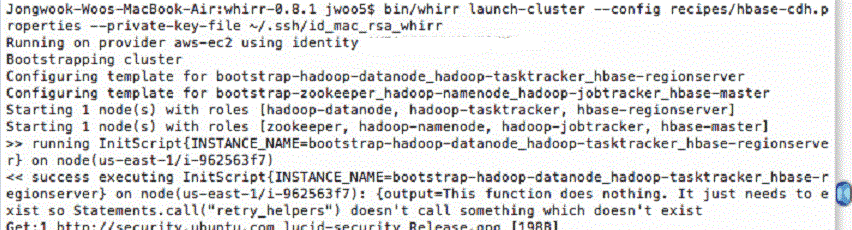
- If you want to stop CDH server of AWS, use the following command:
bin/whirr destroy-cluster --config recipes/hbase-cdh.properties --private-key-file ~/.ssh/id_mac_rsa_whirr
- You can log into instances using the following ssh commands; use the last one as zookeeper/namenode to log into AWS EC2 server

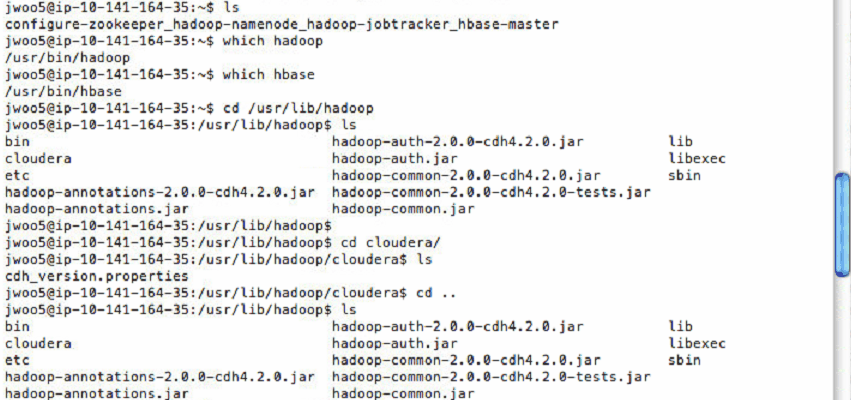
- At the remote SSH shell of AWS, make sure if AWS EC2 has both HBase and Hadoop. Do the same commands as below and compare the results:
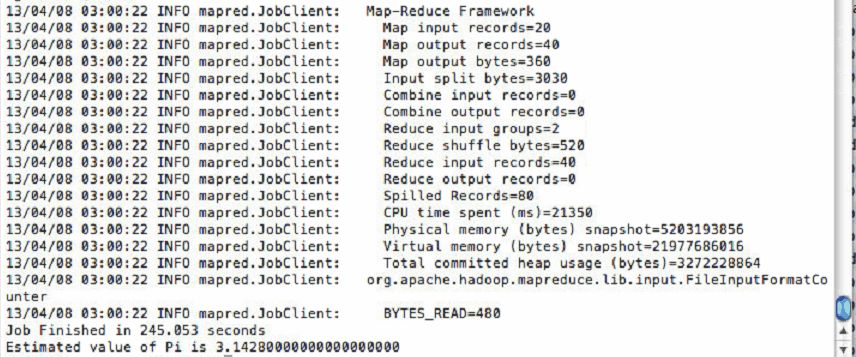
- You may skip the following if you don't have "hadoop-0.20.2-examples.jar". Now run Hadoop pi demo to test Hadoop; Need to have hadoop-0.20.2-examples.jar given by the instructor :
jwoo5@ip-10-141-164-35:~$ cd
jwoo5@ip-10-141-164-35:~$ hadoop jar hadoop-0.20.2-examples.jar pi 20 1000
jwoo5@ip-10-141-164-35:~$ hadoop jar hadoop-0.20.2-examples.jar pi 20 1000

...
- FYI - skip this: Normally need to setup path and CLASSPATH at EC2 server to run hbase and hadoop codes. However, CDH seems have them during the installation.
export HADOOP_HOME=/usr/lib/hadoop
export HBASE_HOME=/usr/lib/hbase
#export PATH=$HADOOP_HOME/bin:$HBASE_HOME/bin:$PATH
# CLASSPATH for HADOOP
export CLASSPATH=$HADOOP_HOME/hadoop-annotations.jar:$HADOOP_HOME/hadoop-auth.:$CLASSPATH
export CLASSPATH=$HADOOP_HOME/hadoop-common.jar:$HADOOP_HOME/hadoop-common-2.0.0-cdh4.2.0-tests.jar:$CLASSPATH
# CLASSPATH for HBASE
...
- Run HBase (Hadoop NoSQL DB) demo:

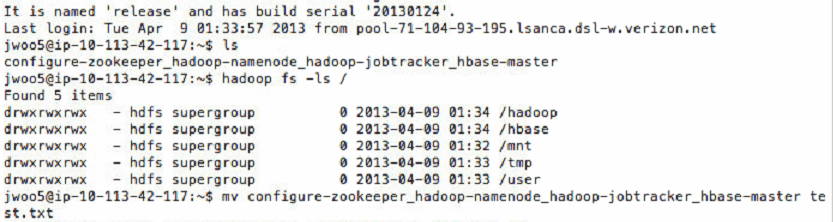
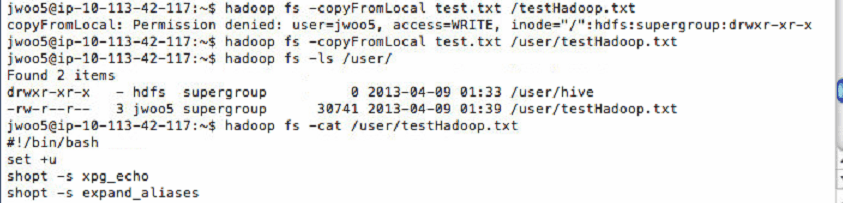
12 HDFS commands test
- hadoop fs -[command]
ls : list files and folders at “folder”
copyFromLocal : copy “local” file to “hdfs” file
mv: move : move “src” file to “dest” file
cat : display the content of “file”
...
References
- How to Set up Hadoop and HBase together using Whirr, http://dal-cloudcomputing.blogspot.com/2011/06/how-to-set-up-hadoop-and-hbase-together.html
- Getting Started with AWS, http://docs.aws.amazon.com/gettingstarted/latest/awsgsg-intro/getstarted.html
- AWS Sign Up, http://aws.amazon.com/
- Whirr Quick Start Guide, https://cwiki.apache.org/confluence/display/WHIRR/Quick+Start+Guide
- Whirr in 5 Minutes, http://whirr.apache.org/docs/0.8.1/whirr-in-5-minutes.html
